
Despite the title this article applies just as well for non wide gamut displays.
Even though I am writing this article from a CG Artist’s perspective, most of the information is relevant to photo and film workflows as well.
“Everything you always wanted to know about color management
but were afraid to ask”
I’ve recently done some extensive research about color management, ICC profiling, “mysterious” color changes when leaving Photoshop and how it applies to a 3D workflow (as well as photo or film workflows). There’s a ton of information and advice out there when googling the subject. Much is contradictory and more or less causes confusion instead of enlightenment when trying to understand what is going on.
After a few days of extensive research, filtering all kinds of information from articles, books and forum threads as well as my own tests and explorations I have got a pretty good understanding of how it all ties together.
Armed to my teeth with this knowledge, I thought I’d share my findings and workflows by writing an article on the subject.
In this article I’ll talk about how to calibrate and profile your display and then how to configure and setup your 2D, 3D and post processing applications for a color managed workflow.
Background
Well, I actually believed I had somewhat basic understanding of how color management worked, but about a month ago I realized that I did indeed have a problem. It started with my Dell 2407 WFP display dying on me after a few years of heavy usage and Dell sent me a new replacement screen. I got a newer model, the Dell 2408 WFP with a wide gamut display.
Hardware and Software
This is the hardware I am currently using and the software I’ll be referencing in the article.
- Hardware: Dell 2408 WFP wide gamut display, Datacolor Spyder 3 Elite display calibration.
- Software: Photoshop CS4, After Effects CS4, LightWave 3D, modo, Firefox, XnView.
- OS: Windows Vista (The wide gamut “problem” exists on Mac OS as well, and much of what I write will apply there).
LightWave 3D is as far as I know the only 3D application on the market that allows true color management (through a free plugin). I was a bit surprised that modo 401 didn’t provide full color management in it’s new release as wide gamut screens are getting quite common – especially in the market modo is targeting at the moment, where seeing correct colors while rendering is important.
Full color management is also in the works for Blender, I don’t know if we’ll see it in the coming version 2.5, but if we do, I’ll definitely take a look at it.
I believe it’s pretty hard to find a large screen today which isn’t a wide gamut display, and I guess that it will soon be more or less impossible, so I really hope more CG applications will be fully color managed in the future.
The Problem
After having received my Dell 2408WFP display I started seeing some really strange color shifts going on. When I had worked on an image in Photoshop and saved it out and opened it in another application all colors appeared extremely oversaturated. And when I say extremely I really mean it. Reds where out of this world. The same was true when just browsing the images on my own site in Firefox. Characters that I was earlier pleased with looked like they where suffering from a bad hangover with oversaturated skin tones and so on.
The same was also true the other way around, when I had worked with a 3D render and was happy with it, saved it out and opened it in Photoshop for post processing nothing looked like the render I had saved out. Colors became very dull and dark.
I started scratching my head to understand what was going on, I had seen small shifts in colors many times before when going in and out of Photoshop, but nothing even close to this. I tried recalibrating my screen several times with my Spyder 3 Elite but to no avail, and reached a point where I was almost afraid to deliver new images because I was so confused and didn’t know anymore what was right or wrong.
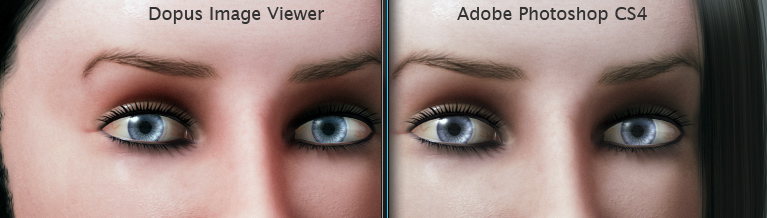
Color Difference
Were the colors correct in my render display when working in LightWave 3D or modo for instance and Photoshop was the bad dude that screwed them up? My screen was correctly calibrated to my understanding at the time. Or was Photoshop correct and everything else wrong? How did other people see my images? Did they see them like how I saw them in Photoshop or like they looked in my 3D application?
Lot’s of questions and no real answers to be found in an easy way. Little did I know that the wide gamut (words I hadn’t really paid attention to) was the cause of me seeing the problems so clearly for the first time when jumping between color aware and non color aware applications.
Anyway, I faced a situation that made it impossible for me to work as usual, so I started digging, I needed to know and foremost understand what was going on. As long as one understand what’s going on and why it happens, it’s not really a problem anymore.
So there did my quest to battle the oversaturated versus dull colors start.
Concepts and Misconceptions
Okay, let’s start with clearing up a few concepts so we get a better understanding of what’s really happening. I want this to be a very clear article that do answer the questions many people with these kind of problems are facing instead of generating more confusion. So let’s give it a shot.
- Wide Gamut
Starting with the oversaturated colors on wide gamut displays. In the past displays were showing colors that were pretty close and limited to what we know as the sRGB color space, with newer displays we have a much larger color range to work with – closer to the Adobe RGB color space. When an application wants to display a pure red pixel (RGB 255,0,0) it sends a signal to the screen that the brightest red should be displayed.
A non color aware application (we’ll go deeper into this further in the article) just dumbly assumes that the display is within the sRGB range and blindly sends the raw pixel data where in the case of a wide gamut screen, which can display much brighter colors, receives the signal of displaying the brightest red, do just that, displays the brightest red that it’s capable of, which then leads to the extremely oversaturated image. - Calibration
When calibrating a LCD display with a hardware device like the Spyder 3 from Datacolor, most people understandably assumes that the display will be calibrated to correctly display colors in the sRGB space.
That is an incorrect assumption.
A more correct label is that the display device get profiled, that means that the display’s color performance and characteristics get measured and saved in an ICC profile that color aware applications will use to display colors correctly within selected color spaces. Some calibration do also occur but non in the same sense as in the CRT era where displays where within the sRGB range. LCD displays doesn’t get truly calibrated at all towards a specific color space, they get their Gamma and White Point values calibrated. This is an important concept to understand and as soon as I got it, it all started to make sense to me.
Profiling is the keyword here. - Non Color Managed Applications
Even though the display now has been calibrated and profiled, non color managed applications will still display colors incorrectly, this is especially true on wide gamut displays. And there is simply nothing that can be done about that except using color managed applications. Wide gamut displays are great and the future, but software developers need to catch up with the new hardware and stop assuming all displays are within the sRGB range. I guess this will happen in the coming years and more and more applications will start using and respect color profiles. - Color Matching
Every display is unique, so one can never achieve that colors will look the same for everybody. But having a color managed workflow and a system properly configured will allow you to create images that will look the best on other profiled systems and for the “big masses” with ordinary displays you will have an image that is the best compromise. - Trust Photoshop
When the display has been calibrated and profiled color managed applications like Photoshop will use that profile and modify its display correctly according to the selected color space. So the colors that you are seeing within Photoshop are the “correct” ones that most people will see something close to. - The Monitor RGB Trick
Never ever use the “trick” Proof Setup » Monitor RGB in Photoshop to get the same colors inside and outside of Photoshop. That will only ensure that you are truly messing up colors that probably will look wrong on most other people’s displays, especially those with newer ones. That’s a real bad advice that has been circulating on blogs and forums and should not be adopted. Then you are totally missing out on the power full color management provides. - Gamma Correction is not full Color Management
Some 3D applications has recently claimed to have complete color management, like Autodesk Softimage. While the application have received some very impressive tools for a complete gamma corrected linear workflow, it’s still not fully color managed. Gamma correction is part of the color management, but only deals with luminance. A complete color management system must also handle color spaces and soft proofing.
Most 3D applications have gamma correction of some sort, but the only ones with true color management in color spaces with soft proofing is LightWave 3D with the SG_CCFilter plugin and maybe the coming Blender 2.5.
To sum this section up; the new wide gamut monitors can render much more saturated colors (which is good, when working with color spaces such as Adobe RGB). Images that are displayed without color management on such a monitor will appear very oversaturated.
The only way to get correct colors everywhere is to have color management throughout the system. Every application dealing with images must respect the image’s ICC profile as well as your display’s ICC profile. And every image must be tagged with the proper ICC profile.
Many images today isn’t tagged with an ICC profile, especially on the web, and an untagged image is always shown incorrectly even in a color managed application unless it’s displayed on a monitor within the same color space as the image was designed for. It works out like this:
- Untagged sRGB image » Regular sRGB gamut monitor » Correct colors
- Untagged sRGB image » Wide gamut monitor » Oversaturated colors
- Untagged Adobe RGB image » Regular sRGB gamut monitor » Undersaturated colors
- Untagged Adobe RGB image » Wide gamut monitor » Close to correct colors
With more and more monitors on the market with different gamuts it has become very important to always correctly tag images with the appropriate ICC profile, and to use color managed applications to ensure the best possible color matching. Which is the only existing cure to get consistent colors on different displays.
Color Managed Applications and Workflow
Now when we are armed with the understanding of color management and the importance of profiling the display and correctly tagging images with ICC profiles, you also need software that are color aware to make use of all these goodies.
I’ll walk through calibrating and profiling your monitor and some of the applications I use, there are many other color aware applications out there, but I will keep it at my personal workflow.
I am currently using Windows Vista as my OS, and Vista isn’t color managed in itself, which means that the desktop image, icons, previews etc are displayed oversaturated on my wide gamut monitor, and there is no way around that. I don’t know if Windows 7 will be more color aware, but I guess that could be pretty tough to tag everything displayed in an OS with profiles, perhaps in the successor to Windows 7.
Which leads us to the next section…
Very informative article. Hope it helps. I’m experiencing same oversaturation and image mismatch problems with my HP LP2475 W monitor.
As for Windows 7 colour management, it’s not managed. I’m using W7 x64 version and its icons look terrible. So far I managed to get right colours in FireFox. Hopefully, I’ll be able to set things right with my photos.
Once again, thanks for some tips.
Hi,
Thanks for your comment.
About Windows 7 and Wide Gamut Displays. I found some interesting information on the subject in Microsoft’s Answers forum.
In Windows 7 they have implemented something called High Color Technology, which is supposed to deal with Wide Gamut displays and make sure colors does look as they should on them.
The Desktop Window Manager didn’t get High Color technology implemented in time for the release of Windows 7, but they aim to get it added to the Windows Desktop for the version coming after Windows 7 as far as I understand from Microsoft’s reply.
You can find the answer in question from the Program Manager at Windows Experience Color & Imaging Team as the last entry in this thread:
How do I get sRGB images to display correct in unmanaged applications on Vista with a Wide Gamut Display?
And in case that link should cease to exist, here is a quote of the reply in the above thread about color management of the desktop in Windows 7:
Hi J_______,
I wish I could give you good news, but the fact of the matter is that the Windows desktop, and most windows components are still not color managed. The Window Photo Gallery, and Windows Live Photo Gallery are the only Windows components that color manage to the display profile. Most Office apps will honor embedded source profiles in images, but then they convert to sRGB and throw that at the display. And IE doesn’t even honor embedded profiles in images…
As you have determined, the settings in the Color Management control panel only affect color managed applications. The settings on the CM Cpl Advanced tab are used to supply defaults for missing profiles required during WCS color transform creation in color managed apps. Again no help for you there.
As far as color managing non-color-managed applications “behind their backs” goes, that is very difficult to do in general. There is no easy way for the OS to tell whether the color data an application is rendering has already been color managed, or not.
We have a technology called High Color that will be in Windows 7 that aims to solve this problem. In High Color, color data is all first converted into an extended range color space that uses the sRGB primaries, but which allows values less than 0.0 and greater than 1.0 (let’s call it sRGB-XR). High Color is closely related to xvYCC and Sony’s xvColor. Wide gamut color data can be converted into this space without any loss. Displays (and display cards) that support High Color are required to be able to convert internally from this sRGB-XR space to their native color space. With High Color, un-color-managed RGB is treated as sRGB, which is unchanged when converted into the sRGB-XR space (it’s all in the [0..1] part of the encoding). But then High Color compliant devices will correctly map this into their native space, so the sRGB data doesn’t get over-saturated by being treated as though it were already in the display’s native wide gamut space (as happens now). And, any actual wide gamut image content gets properly mapped to take advantage of the display’s wide gamut. The plumbing for High Color is in Windows 7. However, the Desktop Window Manager was unable to implement High Color support in time (this requires the use of a fixed or floating point rendering surface), so the desktop won’t be using High Color, yet, in Win7. Maybe next time.
I wish I were able to give you more than excuses, explanations, and futures.
Best Regards,
Michael Bourgoin
Program Manager | Windows Experience Color & Imaging Team
Microsoft Corporation
Thank you!
What about LUT profile ? ICC v2.1 and ICC V4 ?
Be careful windows 7 displays with good color management in standard preview mode but not in full screen mode.
(sorry for my english BTW)
What do you wonder about regarding LUTs and ICC versions?
Thank you so much Johan!
I, too, use Photoshop CS4, a Spyder3 Elite, and the Dell 2408WFP, and was running into the exact problems you described in the beginning of your article. I’m working with photographs, instead of 3D renders, but the concepts are identical. After working for hours on retouching some photos in Photoshop, I would export/upload them, only to be appalled by the oversaturated results!
Thanks to you, I finally understand WHY this is happening, and can now export and upload images with confidence, and am able to verify the results with a color-managed browser such as Firefox 3.5
Thanks again for your excellent write-up
-Tom
Hi Tom,
I’m happy you found it helpful. Those color differences can drive you insane until you get what’s going on, at least me was ready to check in to an asylum there for a while.
Nice photos by the way!
Cheers!
Johan
Wonderful and comprehensive summary. One question: when printing, which printer would deliver a gamut in line with a wide gamut display ? I use a LaCie 724 in AdobeRGB for Photoshop and realize (in soft prooofing and real prints) how much some colors fade away using a Canon Pixma iP4500.
Thanks for the input again.
Hi,
Glad you liked the article. :)
Anyway, I’m not that much into print, but I happen to have the same printer as you, the Canon Pixma iP4500, and it’s pretty decent in printing colors within the AdobeRGB Gamut. Here’s my printing methods from Photoshop, which I think works out quite okay.
Method1:
When printing from Adobe Photoshop CS4, in the print dialogue, make sure Color Management is set to Document (and it should also indicate it’s in AdobeRGB), and that color handling set to Printer Manages Colors.
And here comes the “trick”, when clicking print and you come to the OS system printing dialogue, go into the Canon driver properties and set the paper type and quality (Use custom for Print Quality so you can push it to the highest, quality 1). And then the most important setting, in the Color Adjustment section, change from Auto to Manual and go into the settings dialogue. There you can change the color management to ICM, and now your image hopefully should get properly printed.
Method2:
Another option if you want Photoshop to handle the color conversions, you can change Printer Manages Colors to Photoshop Manages Colors in the Photoshop Printer dialogue.
Then for printer profile, you can select one of Canons included ICC profiles for the iP4500. The provided ICC profiles has somewhat of cryptic names though, but here’s a breakdown of what each default ICC profile is made for:
* Canon iP4500 Series GL2 – Glossy Photo Paper Quality 2
* Canon iP4500 Series GL3 – Glossy Photo Paper Quality 3
* Canon iP4500 Series MP2 – Matte Photo Paper Quality 2
* Canon iP4500 Series PR1 – Photo Paper Pro Quality 1
* Canon iP4500 Series PR2 – Photo Paper Pro Quality 2
* Canon iP4500 Series PR3 – Photo Paper Pro Quality 3
* Canon iP4500 Series SP2 – Photo Paper Plus Glossy Quality 2
* Canon iP4500 Series SP3 – Photo Paper Plus Glossy Quality 2
So go with the appropriate ICC profile from the selection above in Printer Profile dropdown, and then select Rendering Intent (usually Relative Colorimetric) and disable Black Point Compensation and you are ready to press print.
When you come to the system OS printer dialogue this time, change the printer properties to use the same paper type as the ICC profile you selected. The same for the quality, set it to custom and then the same as the selected profile. And in the Color Adjustment’s Manual Settings, disable ICM and set it to None.
These methods should hopefully at least get your prints pretty close to the AdobeRGB gamut with the Pixma iP4500.
Oh, and you can also use the Canon provided ICC profiles for soft proofing in Photoshop. Just go to Proof Setup -> Custom and select the Canon profile for the paper type you’ll use and deselect “Preserve RGB Numbers” so you can select a rendering intent instead.
Hope this helps somewhat.
Cheers!
That is more than I expected as a feedback!
Actually I used exactly both methods so far and the blue tones in softproofing and in prints do not make it to a match with the screen picture. That´s why I asked.
Maybe you can help on another one: I was curious to see whether Itunes is color managed. So I took an untagged picture opened it in firefox and in IE and copied it into the cover section of Itunes. To my big surprise they were copied as they were shown in the browsers: i.e. the color managed photo from Firefox was appearing color managed in Itunes and the non corrected photo from IE was appearing oversaturated in Itunes. If Itunes would be color managed I would have expected both pictures to be like in Firefox and consequently if it is not color managed both pictures to be oversaturated.
So I have 2 questions:
1. Would you know whether Itunes is color managed ?
2. Why would a copy from IE to Itunes leave the photo uncorrected and from Firefox leave the photo corrected ?
Thnaks for helping
Markus
Hi again Markus,
I’ve never used Itunes, so I don’t know if it’s color managed. Easiest way to try it would be to make an image in Photoshop with bright reds, assign an sRGB profile to it, which reduces the reds on screen. And then save it and open it up in Itunes and see if the reds are still in sRGB or if they are overly bright again.
My guess is when you copy and paste an image to Itunes, it copies it as it sees it on the screen, the copy from Firefox already has pixels compensated to your monitor, which then would tag along to Itunes, whereas IE hasn’t. But this is just my assumption as I haven’t actually tried Itunes so don’t quote me on it. :)
Johan
Thank you for this very helpful and well organized information. I just bought an HP LP2475w monitor that calibrates very nicely, but while experimenting with it I discovered that if I set the colour temperature to 6400K in the OSD, the oversaturated look of applications that are not colour aware goes away and in fact the colours are so accurate that there is almost no difference when I view an image within Photoshop CS4 or use a viewer that is not colour managed. As 6400K is a reasonable colour temperature for viewing images, I wondered if there were any reasons I haven’t thought of for not chaning the monitor’s colout temperature to 6400K. Your comments on this would be very appreciated.
Thanks again,
Peter
>> assume that the display is within the sRGB range
Actually that’s not it. They assume no such thing they just send out signal 1 to 1 waht the value says. So imagine having 3 slider system. And then the instruction says All 3 sliders to max that’s what you do.
But a color management system sees a more complex instruction where there is information of what the size and offset of thos e sliders are going to be.
So having a 1 meter long slider to the max is presumably a bit different than having a 10m long slider to the max.
Most systems outside your color management system that have some rudimentary calibration behind them assume SRGB. this applies to scanners and cameras. But not applications that are not color managed.
Thank you so much for your article, this all made a TON of sense, trying to figure out why my images were oversaturated outside of Photoshop. I use an Acer AL2616W which is a wide-gamut monitor.
However, my images as seen over Firefox 3.5 are oversaturated. I have done some tests that prove my Firefox is respecting ICC profiles on images. What it does not appear to be doing is using my monitor profile.
From your article, it sounds like you are saying an image should look the same in Photoshop or Firefox. Is that right? Are we sure that Firefox respects the monitor profile? And do you have any advice for me getting my copy to respect it?
Thanks,
Drennen
Oh jeez. I just tested using my own webserver and can plainly see that Firefox 3.5 is using the monitor profile on my machine. The real problem is how oversaturated it looks on Flickr. So nevermind on the Firefox question and thanks for the great post.
If flickr, a photographers website, strips the ICC profile, Im having a hard time understanding why they would do that.
Thanks for the great post.
I’m using a Dell C22W (Crystal) Wide Gamut. I can’t find any profile for this monitor, but I calibrated it using Huey Pro, and the resulting profile seems to be v4. I had no success with either FF 3.0.15 or 3.5.2 or 3.6beta (3.5.2 only supports v2 though).
I opened a RAW (DNG) photo in Adobe Lightroom and Photoshop CS4 on Win64, then created two JPEG, one with a sRGB embedded profile, another in Adobe RGB. All 3 of them look pretty much identical when displayed in Lightroom / Photoshop, i.e. color managed correctly. Good. Both sRGB and Adobe RGB JPEG files look oversaturated in FireFox or Safari. Ouch. If I disable color management, only the sRGB is oversaturated, the Adobe RGB looks fine, which is expected since it is sent unmanaged to my wide-gamut monitor.
My feeling is that even though FF claims to support v4 profiles, they might not be supported correctly (bugs happen, it’s fine, and that’s why we report them). If Lightroom or Photoshop can do it, then there is a way to do it, right? I think maybe it has to do with LUT based profiles, but I don’t think Huey Pro has the flexibility to create different kind of profiles…
Yes, Firefox supported v4 profiles before version 3.5, but in version 3.5 they changed the color management engine, so they now only support v2 profiles. I haven’t seen anything mentioned if/when they plan to support v4 profiles again.
In the Spyder software (which I use), there’s a setting in the advanced options to switch between v2 or v4 profiles. Perhaps the Huey Pro has a similar setting somewhere that allows you to create v2 profiles instead?
This is the single greatest article series on Wide Gamut monitors and colors on the internet. They should have bundled this with my NEC 2690 instead of the manual. I experienced this exact same problem after installing and calibrating my monitor. Reading up on the potential problems, I found myself having an existential-like nightmare (I didn’t know what was ‘real’ color and what was distorted)…I had no idea if it was the monitor, the calibrator, the OS, Photoshop, or what. After much frustration, I found hundreds of forum threads on dozens of web sites all describing the same problem, and although I got it sorted before I read your article, you do leaps and bounds better than anyone on explaining it. Terrific job, my friend.
I’m so sick of Picasa displaying colors wrong on my new wide gamut dell 3008 monitor. It’s really frustrating!
Why did microsoft get away with designing a system that relies on the application to consult the monitor profile? Why can’t there be a windows-wide software solution to make non color managed (indeed ALL) apps behave properly? I guess that would mean telling photoshop not to colour manage.
Why can’t this be done at a software level? Why is color management so messed up? And why won’t picasa implement it? The program is all but useless to me now I’ve bought a decent screen…
thanks for the post. It was indeed very useful.
could you please clarify what kind of settings I need for RED camera files.
Michael,
I haven’t used the RED camera myself, so I don’t have any experience with those particular files. But take a look at this blog post over at Adobe, http://blogs.adobe.com/davtechtable/2008/12/native_red_camera_files_cs4.html
It walks through working with RED camera files in Premiere and After Effects CS4 and what settings to use.
Cheers!
Johan
great article. looks like you have invested alot of time into this subject. thank you…
could you recommend any printer for professional photographers.how can anyone deal with nozzle problems from epson printers?
fyi, in response to the first page, Softimage doesn’t support just gamma correction as a luminance correction, it supports true 3D lookup tables. (3D lookup tables use all three channels to produce a new color, and therefore adjust more than the luminance)
The feature is simply called “Gamma Correction” for simplicity. Originally, the developers had called it “Color Correction’ but this was confusing with the use of the phrase “color correction” in other parts of the software.
Hi luceric,
Thanks for chipping in. :)
Yes, 3D LUTs are interesting. Also LightWave 3D, 3dsmax, maya, Fusion, Nuke and so on supports using 3D LUTs as well.
The problem with a 3D LUT, (afaik) is that there is not really any solution out there to generate a 3D LUT file for your display in a simple, affordable way that fits within a budget for a small operation or a single freelancer (like me).
I’d love to be able to use my Spyder (or similar device within the same price range) to generate a 3D LUT file that I could use with most 3D and compositing apps.
But I have yet to find such a solution, I’d be thrilled if it existed though.
This is a stupid question but…. If you have a wide gamut monitor why can’t you use (for example) nVidia’s picture control dialog and tweak settings so that Windows icons and untagged sRGB web images look ok on a wide gamut monitor? Then you make a profile that color managed applications can show Adobe RGB tagged images as they should be?
Another confusing thing is Adobe Gamma. Does that affect on picture exactly like nVidia settings?
Hi,
What a useful article! Many thanks for that. Still one thought: isn’t it a ‘solution’ to switch the wide gamut monitor to sRGB emulation (I think the Dell U2410 has this option, not sure about your Dell monitor) if you are working in not color managed environments? (I think it should be even possible to have a seperate ICC profile for this sRGB mode so you could even import creations to a color managed program) Your monitor would operate more or less as a standard sRGB monitor and colors should look decent when browsing the web. When working in photoshop just switch to the normal wide gamut mode. Best of both worlds or do I miss something?
Hi,
I’m happy you found the article useful, and thanks for your input.
You’re correct, some monitors have an option to simulate sRGB, which would/will solve the problem. The Dell 2408 has a ‘sRGB’ preset, which unfortunately doesn’t simulate sRGB very well or correct so it is of little to no use. I do wish it would have simulated sRGB properly and I’d have been a happy camper. I know some other more expensive wider gamut monitors do a proper job on this though, and I’ll probably be looking on a more decent one myself the next time I’m monitor shopping.
Cheers,
Johan
I’m going to revise some of what I wrote above, your comment got me thinking. :)
About two weeks ago the version 4 update of the calibration software for my Spyder was released, with a new feature that allows you to compare the gamut of your display to standard color spaces like sRGB and AdobeRGB. In the image to the right you can see how my Dell 2408 (red triangle) compares to sRGB (green triangle) gamut wise.
I don’t know if other calibration systems have this feature, but this addition could prove extremely useful. I did some quick testing with this today, started tweaking my RGB settings in the monitor and pretty quickly got close to a sRGB gamut. (I can also mention that the default factory “sRGB preset” in the Dell monitor was smaller than a correct sRGB gamut).
By using this new gamut measurement panel in the Spyder Calibration you could dial in a very close match to an accurate sRGB gamut on a wide gamut monitor. I’ll definitely spend some time experimenting with this the coming weekend. It seems this will open up the door to have a reliable sRGB setting which you can trust, even with a Dell 2408 monitor, to use with non color managed applications (like Adobe Premiere Pro).
Cheers,
Johan
Hello, thank you for the great article! Really helpful :)
But one thing is unclear to me. You said that when making textures in PS you use sRGB as default profile, but when I use that texture in 3ds Max (which is not color managed) it looks different and so does the render when watching in PS. Only way I can get same result both in PS and 3ds Max is if I set color profile in PS to be my monitor profile. After rendering I open image in PS and after I’m finished working with it I convert it to sRGB and embed it when saving. Is that a wrong way?
Thank you so much. This is a great article clarifying a lot of questions I had concerning wide gamut screens. Very very good work.
Additionally, readers might be interested in how to see untagged sRGB images correctly in Firefox 3.5 while surfing the web. Basically the following setting allows to render tagged images correctly while automatically rendering untagged images as sRGB, which is right most of them time and doesn’t show you the ugly red oversaturation on wide gamut screens:
– In the adress bar, enter ‘about:config’
– Leave all the options at their default values, except gfx.color_management.mode, where you change the value from ‘2’ to ‘1’
BR, Daniel
This is one of the best colour management workflow articles I’ve ever read and I’ve read loads of them recently.
I hope you will update it one day to take into account newer Spyder software and Windows 7.
This is the best explanation I have read regarding monitor calibration. A lot of articles I have read give the impression that calibrating a monitor means that a color ICC profile is generated and once it is set in the OS, everything becomes right. They don’t say that you have to have color managed applications. And now it seems that even Windows 7 desktop isn’t color managed at all.
I just received a new Dell U2410. It has an sRGB color preset and a AdobeRGB color preset (among others). I have set it to sRGB. I don’t have a color calibrator like the Spyder 3, but I am planning to get one. However, it is clear to me now that only color managed applications will benefit from the color profile of the monitor that is generated.
I don’t know how close the U2410 sRGB mode is from the real sRGB, but I take it that if they are close enough, then even applications that are not color managed should look ok.
Thanks for a great article.
Thanks man!!! …after reading you all makes sense… I was going crazy