Some LightWave 3D modeling tips and tricks

Aug 17, 2008: I’ve written a more updated version of this post here.

This is a follow up to my post earlier today to share some of my modeling “secrets” to be able to model as fast as possible with LightWave 3D. Perhaps some of you out there will find this or parts of it useful.

I’m doing all my modeling in LightWave 3D 9.2 for my current project even though I was tempted to bring it into Modo for a while. But I’m using a few life savers which prevents me from going crazy which would be the case if I have had to model without them. So let’s start with my best tips for LightWave 3rd party modeling plugins.

  • Weld Pro – Free plugin that works just like LightWave’s own Weld tool with the difference that it supports symmetry.
  • DEdgeSlide – Another free wonderful plugin. LightWave doesn’t have it’s own edge slide tool (yet?), but I use this one all the time. I can’t see myself modeling without being able to slide edges anymore. The difference between sliding and moving an edge or edgeloop is that sliding tries to preserve the shape of the geometry.
  • EasySplit- This one comes with a $50 price tag. And it’s worth every dime of it. It allows you to more or less draw in new topology on your mesh. Just draw in new edges with a single a mouse stroke. I find myself using this over and over when I’m changing topology or adding new edges. To just be able to draw in new topology is a major time saver. And guess what, it supports symmetry.
  • PMirror – Well symmetry does get lost now and then when modeling. And this little free baby corrects it with a single push of a button. Oh, how many times I’ve pressed that button with a smile on my face. Beware though if you’re using Catmull-Clark subdivision surfaces it doesn’t support it fully like it does with Subpatch surfaces, but just tab to polygon mode before running PMirror and you will be a happy camper.
  • Connect – Well, this isn’t a 3rd party tool but it was introduced in the LightWave default toolkit with version 9.2 (or was it in 9.0?). Anyway, I thought I should mention it as I use it all the time now. It’s a great and quick way to add new geometry where you need it by just selecting edges, vertexes or polygons and run connect to create new edges between them. Preferably have it mapped on a hotkey as you’ll use it a great deal when you get used to this tool.

And also another small but oh so lovely tip. Use your extra mouse buttons! I have mapped some tools I use all the time on my spare buttons. I am blessed with having 5 extra mouse buttons on my current mouse. it goes like this:

  • Back button – Drop Current Selection
  • Forward button – Select Loop
  • Mute button – Select Connected
  • Volume up button – Expand Selection
  • Volume down button – Contract Selection

Anyway, I know, strange buttons to have on a mouse, but it’s one of those Logitech Media mice. The MX 610 cordless laser mouse to be precise. But well, as they can be reprogrammed into something useful, it’s a pretty good mouse for 3D modeling.

And while I am into this minor tips and tricks session, another must do for the die hard LightWave modeler. Hokeys are great, but it can be hard to have every tool on a hot key, especially if you run out of keys or don’t feel like overloading your poor brain with 100’s of key combination for every program you are using. So what I do in LightWave is to setup a tab with all tools gathered that I am using in one place. So I have them available to me at all times without having to jump through different tabs or dig down inside menu hierarchies.
So this is my customized tab in Modeler for organic modeling, which I think covers everything I need at the moment for a speedy workflow while modeling. It’s a constant work in progress though as new tools or plugins are released but it’s a quick job to just exchange a tool on those rare occasion something new surfaces.
Quick and dirty Walk through…

LightWave Organic Modeling Customized Tab

Modeling Menu

Add & Reduce

  • Collapse Polys – For those occasions where I quickly just wanna rearrange the flow of a group of quads.
  • Bridge - Connect polygons with new geometry created in between.
  • Cut - Cut a loop or selected order of polygons with the amount of cuts needed. No longer interactive since Lightwave 9, so I seldom use it at the moment.
  • QuickCut1 - Predefined number of cuts. I have 3 rows cutted automatically with this one.
  • QS Dbl Term – 2 rows quick cut with termination to prevent n-gons.
  • BandGlue - Glues together two rows of looping polygons to one band.
  • BandSaw Pro – Cuts a loop of polygon in as many rows as needed.
  • Multishift - Bevel on steroids. Bevels in several steps and polygons can be grouped. And best of all, advanced bevels can be stored, either to disk or to memory. I use store to memory for instance when I have made a nice nail bevel on a character to quickly reuse it on the other 4 fingers.

Edges

  • EasySplit - 3rd party plugin to draw new topology directly on the mesh.
  • DEdgeSlide - Slides Edges on the mesh while preserving the shape.
  • JW_WeldEdges – 3rd party plugin to weld edges together. Supports symmetry. It’s part of the Free JW edge pack.
  • Dissolve - Removes an edge or loop of edges from the mesh.
  • Connect - Connects edges, vertexes or polygons creating new edges between them.
  • Spin Edge – Spins an edge. I like this better than Spin Quads, but Spin Edge seems a bit unstable at the moment in LightWave. It has crashed several times for me so I stick to Spin Quads for the time being and I hope the stability will be fixed in the next service update of LightWave.
  • Add Edges – Adds new edges betwen polygons. It doesn’t support symmetry so since I got EasySplit I have more or less stopped using this one.
  • Edge Bevel – Bevels an edge interactively.
  • FI’s Wrinkle -3rd Party plugin. Free plugin that work like Edge Bevel but adds an extra edge in the middle which can be offset to quickly create a wrinkle in the geometry.
  • Sharpness - Drop down menu which contains Set Sharpness, Decrease Sharpness and Increase Sharpness. To be used on edges when working with Catmull-Clark subdivision surfaces.
  • JW Edge Pack – A free plugin pack containing 13 useful plugins when working with edges. Things like EdgeWalk is pretty handy and all of them are modeling speed boosters.

Vertices

  • Move On Edge – 3rd party plugin. Moves a point along any of it’s connected edges, preserving the shape of the mesh.
  • Weld Pro – 3rd party plugin, works like LightWave Weld tool but preserves symmetry.
  • Weld Pro Config - Some settings for the Weld Pro tool, like symmetry on/off.
  • Weld Average – Welds poins to their average position instead of to the last selected point.
  • Weights – Set weights for Subpatch Subdivision surfaces.

Modify

  • Thicken - Free 3rd Party plugin from DStorm. Allows you to take a single sided mesh and add depth to it. Great for building clothing from an extracted part of a character mesh.
  • Thickener - Free 3rd Party plugin from Blochi. Works like DStorm thicken but is interactive. Interactive LScript was broken for a while in LightWave so that’s why I have both, but now it seems like that will be fixed, and then I’ll stay with Blochi’s.
  • Point Fit – Free 3rd party plugin. Tries the best it can to fit a mesh onto the object in the background layer. Great for getting a roughly modelled piece of clothing to fit a character before getting into details.
  • Smooth Scale – Scales polygons along their normal axis. Would love to have this interactive.
  • Translate Plus – Moves geometry in a controlled fashion. Lot’s of options, but I mostly use the segment translation, where you can select an edge and have your geometry move in that exact direction. Very handy when extending polygons on a mesh that’s not laying perfect on the XYZ axis.
  • Pnt Normal Move – This is the closest I get to smooth scale interactive. It moves vertexes along the normal axis. I use this quite a bit now. With some cleanup afterwards I get the results I am looking for pretty fast.
  • Magnet – Move with a fall off – Great for organic tweaking. Like pushing cheaks or moving an ear and things like that.
  • Vortex -Rotate with an fall off. Nice for making adjustments, like tweaking mouth and eyes when creating morph targets.
  • Pole 2 – Size with a fall off. When you need to resize major parts of a mesh without messing it up to much.

Tools

  • Make Symm – Select a point of each side of the X Axis and this 3rd party plugin makes them symmetrical.
  • Symm Manager – Tries to find and correct all points that are not symmetrical. Can be a bit unpredictable but now and then it does a great job.
  • PMirror - Always fixes the symmetry errors when they appear. It does it the hard way by cutting, mirroring and merging the mesh. I love this tool!
  • Symmetry - Turns symmetry on/off. I have this placed under PMirror as PMirror needs symmetry off to function correctly so I can quickly do the procedure; Symmetry -> PMirror -> Symmetry and from a broken symmetry mesh I am back working on a fixed mesh in a second.
  • Toggle Backdrop – Toggles the backdrop images on/off. When using reference images in the background.
  • Subdivision - The subdivision tools in a drop down menu; G-Toggle Subpatch, Set CC, Set Subpatch, Set Face.

Selection – All these tools are selection related and needs no explantion me thinks?

  • Sel Connect
  • Expand
  • Contract
  • Sel Points
  • Sel Polys
  • Sel Edges
  • Mirror Select
  • Create Part
  • Sketch Color
  • More Selections - A drop down menu containing all other available selection tools in LightWave in one place.

And as this was a organic modeling post I won’t go into other tabs, but I can mention that other than my organic modeling tab I have a few other customized tabs setup for different phases of the creation process. Those other Modeler tabs I have setup are as follows:

  • Texturing
  • Rigging
  • Hair
  • Plugins
  • Visualization
  • LWCad/LWCad Ext.

How those tabs are designed is subject for some other posts in the future when I do work in those phases of my modeling process. And if there is some interest that I share my setups of course.
Anyway, I hope this was a useful post, and feel free to ask me any questions!

Still operating on Kat but here is a hand update

Well well well, when you get into reworking something like I have done here with Kat’s complete topology it’s bound to take a little bit longer than expected. But here’s a quick update until I’m completely finished with her. Aiming on tomorrow, but you never know. Anyway, here’s an OpenGL screenshot of her new hand in it’s current state compared to the old roughed out placeholder.

Work in Progress - Katana Hands

Worked on making the hands looking much better

It’s getting there, but I still some tweaking to do until I’m completely happy. Originally I intended this piece to be quite a quick one to improve my work with edgeloops. But since then I’ve got so much into anatomy and correct proportions so I’ve changed my mind and instead I am now aiming for this character to be my most detailed and realistic character yet to this date.

Today I’ve been working on all parts of her body, adding details, especially on her back, adding all the small things like hints of the spine, shoulder blades and lot’s of small bones under the skin. I’ve most details in place but I have a few hours of pushing and pulling vertexes around until I get the nice smooth surface on top of everything that I want to have. I’ll post more images as soon as I am there.

And what you all been waiting for…
Todays Modeling Music: Her Majesty – Happiness

Katana – gets new anatomy and topology

There has passed some time since my last update of my character Katana. Last time I posted a progress of her I was in the texturing, shading and hair phase. Since then I have improved my skills so much in topology and anatomy so I just couldn’t stand to see her mesh anymore, so I took it back a few steps and went back into the modeling phase to fix her up a bit. She was a bit reluctant at first laying down under the knife, but at last I talked her into it.

So I just wanted to post this quick update of where I am with her at the moment, with her anatomy update.

Work in Progress of Katana

Improving the proportions of the anatomy

I am by no means finished with the anatomy changes, but the image above shows some of the progress I’ve made so far. I have given her better proportions on the skull and the overall body shape. Started defining the shoulders, neck, crouch, stomach and so on much better. I will post more detailed shots from several angles and closeup wires as soon as she comes off the operating table, sometime tomorrow. Keep your fingers crossed everything goes well.

Modeling Music: The Whitest Boy Alive – Dreams

CG Challenge XXI – Strange Behavior

CG Society just announced CG Challenge XXI – Strange Behavior.

Excerpt from the challenge website:

“The CG Challenges are the largest online art contests of their kind, with huge amounts of sponsorship and publicity for each challenge. Working within guidelines and software limitations, artists are challenged to create outstanding artworks based upon set themes while showing their work-in-progress to the community.”

CG Challenge XXI - Strange Behavior

CG Challenge XXI

Strange Behavior.
25 June 2007 – 29 October 2007

The unexpected can delight or shock. It can be exciting or frightening.
It’s often funny. It’s never boring!

This challenge draws on one of the most popular artistic themes – unusual behaviors and relationships. Whether it’s a giant robot admiring a fluffy teddy or a sheep in wolf’s clothing; a cow that thinks it’s a helicopter or a warrior going into battle dressed as a giant pink bunny – they all make you stop and think. They also stimulate discussion – what one person finds funny another thinks is demented. Unusual juxtapositions and humor allow us an unprecedented freedom of expression. They can also bring us closer as we laugh together and at ourselves.

Entrants are required to bring to life Strange Behaviors in the most entertaining, humorous and emotive way.

—–

My thoughts:

I have always wanted to participate in one of these challenges, to see what I can come up with. This time around I actually think I have the time available until 29th of October to be able to submit an entry to one of the categories that’s appropriate for me. Illustration or animation, I think I’ll have to pass on short film.

I’ll go on vacation in 8 days from now, so I have tons of things to complete before then, so I will let this challenge rest for a few days, but on my vacation I’ll have plenty of time to brainstorm together a concept for my entry, and then I might actually be on my way completing a piece for this one. I’ll keep my fingers crossed.

Pin-up morning doodle

Sunday morning. I woke up early today, and just felt like spending this lovely morning doodling around a bit in ZBrush. This is what came out after a quick session.

ZBrush morning female doodle

A quick ZBrush Pin-Up doodle I made this morning

It’s based on the character from my last work in progress post which I’ve been working on in LightWave 3D. I just exported her out of LightWave at her current state and sculpted away for a while in ZBrush. This gave me the opportunity to get into using sub-tools, transpose control as well as polygon painting and materials in ZBrush at the same time. Well, this was just something I made for fun to get the day started. I’ll post my progress of the LightWave version of this character this evening.

Morning doodling Music: Camera Obscura – Let’s Get out of this Country

The art of the female anatomy

Lately I’ve been dedicating almost all my polygon modeling time towards the art of the female form when I haven’t been ZBrushing or recovering from dental surgery mayhems.

This character is going to turn out to be something really special, and I’ll have her finished right next to my Kat(ana) character. I just wanted to post an entry about her to get this modeling thread going as well in the blog.

In the Dungeon - Character Work in Progress

Working on improving my topology and anatomy knowledge

As can be seen, I haven’t really worked on the head yet, but been deep into working with getting a good anatomy topology of the body. I’ll work with this character this weekend, so I’ll have a new post with her on Sunday with better closeups of all the details and the final body modeling in place.

For quite some time I’ve been studying the female anatomy and the belonging topology a great deal to improve my modeling skills in that area as much as I can at the moment. I really hope this character turns out to be very good in that respect. I must send many thanks and kudos to Steven Stahlberg for all the great advice and information I’ve got from him and made myself get into a better habit of research and planning of my models in an early stage. I wouldn’t have learned so much and increased my understanding in this area if I hadn’t got the opportunity to share some of his knowledge. And I have learned to don’t fear the n-gon as much as I used to. ;)

I don’t think this particular character will get any ZBrush treatment. Polygon modeling has its own elegant charm, even though I really do enjoy sculpting. But there is a time and place for everything. And it feels pretty good to be working just inside LightWave’s modeler again. It gives me a very cosy and warm feeling to puzzle and spin all polygons in place.

On an unrelated note, I started editing together my 2007 showreel earlier this week, and it will go online in July. Details to come later.

Modeling Music: The Sounds – Dying to Say this to You

Let’s give Kat a sword

There’s been lot’s of ZBrushing in the log lately, but I’ve continued working on among other things my Katana character piece at the same time.

So while I was in LightWave 3D today modeling on Kat we talked about accessories. Yes, you do actually have to talk to your characters while modeling them. How else will they spring to life? And we decided that I should get her a Katana sword. I cleared out my screen and modeled together this piece of weaponry for her.

Katana Sword

Katana Sword - LightWave 3D Render

And here is an occlusion render and the wireframe of the above sword.

Katana Sword - Wire and Occlusion Render

Katana Sword - Occlusion and Wires

Alright starting to get time for a new update on the progress of how she is coming along as well. She told me she was eager to get a public appearance again. Stay tuned for an update of her shortly unless any new zbrush doodles surfaces first.

Modeling music: Architecture in Helsinki – In Case We Die

ZBrush + LightWave 3D = True!

It was time! Time at last to bring one of my creations into another renderer than ZBrush. I doodled up something in ZBrush and moved it into LightWave 3D for rendering this time. Below is a rendering of my only 2470 polygons large mesh inside of LightWave with a displacement map.

Bird Creature Head - ZBrush Doodle

First try to combine ZBrush and LightWave 3D

It did actually take some time and experimentation until I got it right, but in the end I did find a good flow for the process of getting ZBrush data into LightWave 3D.

I started with a quick doodling session in ZBrush. The usual procedure. Draw out a couple of ZSpheres to get a base mesh, divided it a couple of times, and sculpted for about 30 minutes to get something with enough details in to work with and find my flow between the applications.

It took a few turns back and forth and quite some head scratching until it worked smoothly. I ended up working in this way. First the ZBrush part.

  • Bring the mesh down to the lowest resolution.
  • Group the UV tiles (It’s not a pretty UV map created this way, but it was okay for this experiment as I wasn’t about to work on the map in any other application anyway).
  • Enable adaptive displacement, raise the intensity to max, enable displacement mode and finally set my output resolution to 4096 pixels and run create displacement map.
  • Export my base mesh with flipped quad polygons as an .obj file and also export the displacement map flipped vertically as a tif image.

And we’re done in ZBrush, let’s move on to the LightWave part.

  • I imported the .obj in Modeler and turned on subpatching, saved it as an .lwo and moved on to Layout.
  • In Layout I made a displacement node flow, consisting of the displacement map image fed into a subtract node. As medium gray in the displacement map is pushed out in LightWave and it’s supposed to be 0 in ZBrush measurements, I subtracted 0.5 from it. Then a multiply node to control the height of the displacement and finally I ended up feeding it into a scale node combined with the normal spot info node. Done, a perfect ZBrush displacement inside of LightWave.

Before rendering I enabled LightWave’s APS system, Adaptive Pixel Subdivision, and set a gradient on the Angle to the camera’s Z-Axis to get enough polygons for detailing at render time without killing the engine. And for fun I also slapped on a SSS shader node flow to make it a bit more interesting. F9! And we have a scene with 2470 polygons rendered as 1.4 million polygons with lot’s of lovely details!

Here is a tiny visual step by step guide all the way from ZBrush into LightWave ending up with an Ambient Occlusion render.

Bird Creature Head - ZBrush Doodle Process

Visual Steps from ZBrush to displaced LightWave render

I hope this information will be found useful to some people.

Anyway, next time I will make the final step, bringing one of my 3D meshes out from LightWave and into ZBrush, sculpt details on it there and then bring it back to LightWave again for rendering.

Doodling Music: Air – Pocket Symphony

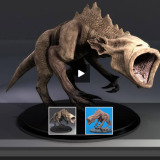
Chupacabra – Rendered Update

A small update on the doodle I posted earlier today.

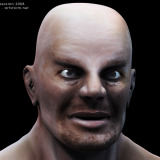
Chupacabra - Rendered Version

A test render of the Chupacabra doodle

I wasn’t completely happy with the look I got from the default rendering settings in ZBrush, so I spent some time reading up on the different settings and how they worked. So I just wanted to post a new version of this doodle with some improved settings. I’ve turned on edge anti aliasing here to get rid of the jaggies, added some perspective, improved the shadow settings. And also just had some fun painting my sculpture for a few minutes to make it a bit more interesting. Enjoy this cutie! :)

Still listening to: Koop – Koop Islands

Chupacabra ZBrush doodle

I’ve continued my explorations into the ZBrush universe and this is what popped out. I love the freedom to just mindlessly sculpt in this application. Hope you enjoy it.

Chupacabra ZBrush doodle - two angles

Chupacabra ZBrush Doodle

I’ve been into improving my ZBrush skills for about a week now I can say this software is truly amazing and will for sure improve my existing workflow. It’s so nice not having to fight the software, and I’m feeling free in the application and have found myself thinking more like a traditional sculptor. Yes, I am really having fun! :)

Chupacabra ZBrush doodle

Another shot of the Chupacabra ZBrush Doodle

While working on this piece I realized I have to think a little bit more about topology of the base mesh, before jumping into the the finer detail sculpting. This will be less of a problem when I get into importing my meshes I create in LightWave, as I am very careful with the topology modeling in LightWave. But this sculpt was, like my second doodle two days ago, made completely inside of ZBrush, with the base mesh built from ZSpheres. When working with the details around the eyelid area as well as the genitals I realized I didn’t have enough polygons driving the sculpt in the background to be able to work as precise as I needed to do there. I could divide the mesh another time, but then I would get a great deal of details added to areas where I didn’t need it. Waste of resources in other words.

Well, this was doodle number three, so I am still learning, and on my next ZB doodle I’ll not make this mistake again, and make sure I put denser details in the areas where I need it from the beginning. Here is some screenshots from the different stages. ZSpheres -> Adaptive skinning -> Sculpting in the details -> Render in a clay material.

Chupacabra ZBrush doodle

The Chupacabra Process from ZSphere to Final Mesh

Gonna read up a bit on working with topology inside ZBrush next, to have better control of my sculpts I create inside ZBrush, and see what I come up with next.

ZBrush sculpting music: Koop – Waltz for Koop