ASE Spline Import
An importer plugin for LightWave 3D Modeler that imports splines from Autodesk's ASCII Scene Export.
I grew tired of fighting with editing hair guides in LightWave 3D, especially as I have access to more applications than LightWave.
I like the hair styling tools in 3ds Max, but I couldn't find an easy way to move splines from 3ds Max into LightWave, as no format I tried seemed to handle splines between the applications. Finally I grew tired of finding an out of the box solution for moving splines into LightWave, which gave birth to this importer.
This tool imports curves via Autodesks ASCII Scene Export, .ASE files into Modeler.
The importer strips everything from the .ASE file except splines. I could probably extend the importer to handle the other elements in the format as well, but I didn't personally see the need for that, as there already are many other options available for that like FBX/Collada/Obj.
I also decided to only import the vertex knots from the .ASE file and not the interpolation knots when building the curves in LightWave, as I found them only adding unnecessary clutter and not keeping the curves as clean as they come in now. If there is any reason the keep the interpolation knots, feel free to drop me a note and I might add an extra option for that.
Usage
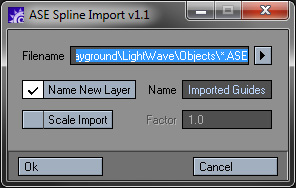
This tool is quite straight forward to use, but here is a quick guide just for the sake of it.
Filename: The .ASE file to import. The arrow on the right opens a file browser, which defaults to the objects folder in the current content directory.
Name New Layer: The .ASE file imports in the next empty layer and places the curves there. If this box is checked the new layer gets the name typed into the textfield next to it.
Scale Import: Let's you scale the splines by a factor of your choice to easier match the import with packages using other scaling units than LightWave 3D.
That's pretty much it. Hope some of you find this tool useful.
Download
Available downloads for the ASE Spline Import.
Latest Release
Older Releases
Source Code
ASE Spline Import is released as an open source project under the new BSD License. The project is hosted on GitHub where the repository can be browsed or forked.
Or use git to clone the repository with complete history:
git clone git://github.com/artstorm/ase-spline-import.gitContribute
I'm very interested in your contributions... What else deserves to be in this plugin? How can it be improved? Coders, feel free to fork the repository, make any updates and then send me a pull request. Non-coders, submit a request in the issue tracker.
Support
There is no official support for this plugin, but if you run into any problems or bugs, you can file a report in the issue tracker and it will be looked into. You need to have a Google Account to file a new issue.
Report an ASE Spline Import issue
Compability
ASE Spline Import has been tested on LightWave 3D 9.6, Win64. As far as I know it should also work fine on Win32, the Mac and older versions of LightWave 3D.
Changelog
The development history of ASE Spline Import.
Version 1.1 - 17 Feb 2010
- Added an option to scale the imported splines.
- Added a .cfg file located in LightWave's config folder to store the settings between sessions.
Version 1.0 - 29 Dec 2008
- First public release of the plugin.
ASE Spline Import
- Initial Release
- Dec 29, 2008
- Latest Release
- Feb 17, 2010
- Host
- LightWave 3D
- Operating System
- Cross-platform
- Language
- LScript
- License
- New BSD License »